
Models and Tasks in One Workspace
JuheNext Agent brings model selection, conversations about your files, search, and creative tools into one interface. Sign in and add a JuheNext Key to choose from the models available to that key.
Different tasks need different capabilities. Choose a model for writing, document analysis, or visual work according to the task. The current Agent interface shows the available features and settings. The model catalog lists models and prices, while the Agent overview explains the main capabilities.
Work With Documents and Images Across a Conversation
Add a document or image to a conversation and ask the model to extract key points, compare material, explain a concept, or rewrite text. Keep follow-up questions in the same conversation to reduce the need to repeat the background.
Document answers can include source citations. When checking a conclusion, return to the cited passage and confirm that its context supports the answer. This is especially useful for numbers, conditions, and decisions that depend on the source material.
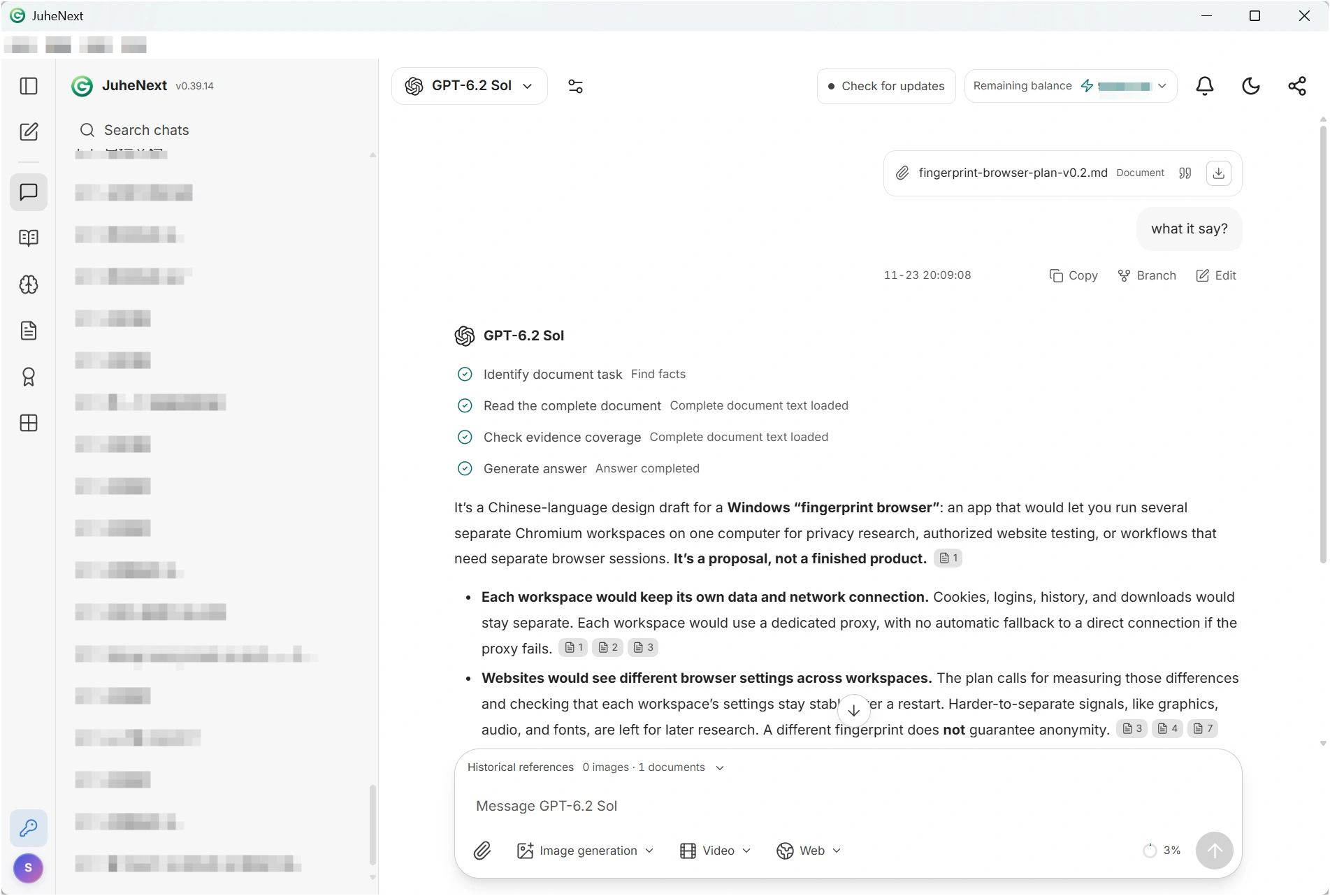
The screenshot shows the actual interface in Chinese. It illustrates how document answers and source references appear together in the workspace.
Search and Visual Creation
For tasks that need recent information, enable web search and review the sources provided in the answer. Assess each source by its publication date, publisher, and relevance to the task.
Image and video generation can also start from a conversation. Depending on the selected model, set reference images, aspect ratio, resolution, or video parameters. After generation, preview, download, or reuse the result in later work.
- Image tasks can use the reference images and visual settings supported by the model.
- Video tasks may accept reference images, first and last frames, or keyframes, depending on the model.
- Supported inputs, generation settings, and costs vary by model.
Ongoing Work and Desktop Connections
Agent includes memory management, conversation search, archiving, and export to help organize material used over time. Export important content when you need a separate copy.
The JuheNext Windows client also provides a connection wizard for Codex in the ChatGPT desktop app. The wizard checks the application, lets you select a key and model, and backs up and applies the connection settings. Restart Codex as instructed when setup finishes. This desktop connection is a separate workflow from an Agent conversation in the browser; choose the entry point that fits the task.
Getting Started and Checking Costs
Open JuheNext Agent, sign in, add a key, and choose a model. The getting started guide explains the initial steps.
JuheNext uses a prepaid balance with charges based on actual usage. There is no monthly charge, and unused credit does not expire. Read the prepaid balance and usage-based billing guide, then use Pricing to plan credit and Usage to check your balance and recent requests.