
Continuous image generation lets you create an image in a conversation, then refine the result through follow-up instructions. This article explains the roles of context, reference images, and version history, using a real JuheNext Agent session that moves from an initial image through two rounds of editing.
To try it in JuheNext Agent, enable image generation, create an image, then select “引用此图继续修改” (Use this image for further edits) on the result. This adds the image as a reference for your next instruction. The three screenshots below come from that workflow; the final section gives the steps to reproduce it.
From One-Off Generation to Iterative Image Editing
Searches for “continuous image generation,” “conversational image editing,” and “image generation with context” often describe the same need: modifying an existing result in natural language without repeating the entire brief.
In a one-off text-to-image workflow, a user submits a prompt and parameters and receives an image. If it needs changes, the user writes another prompt. Each request is treated separately, so the user has to restate what should stay and what should change.
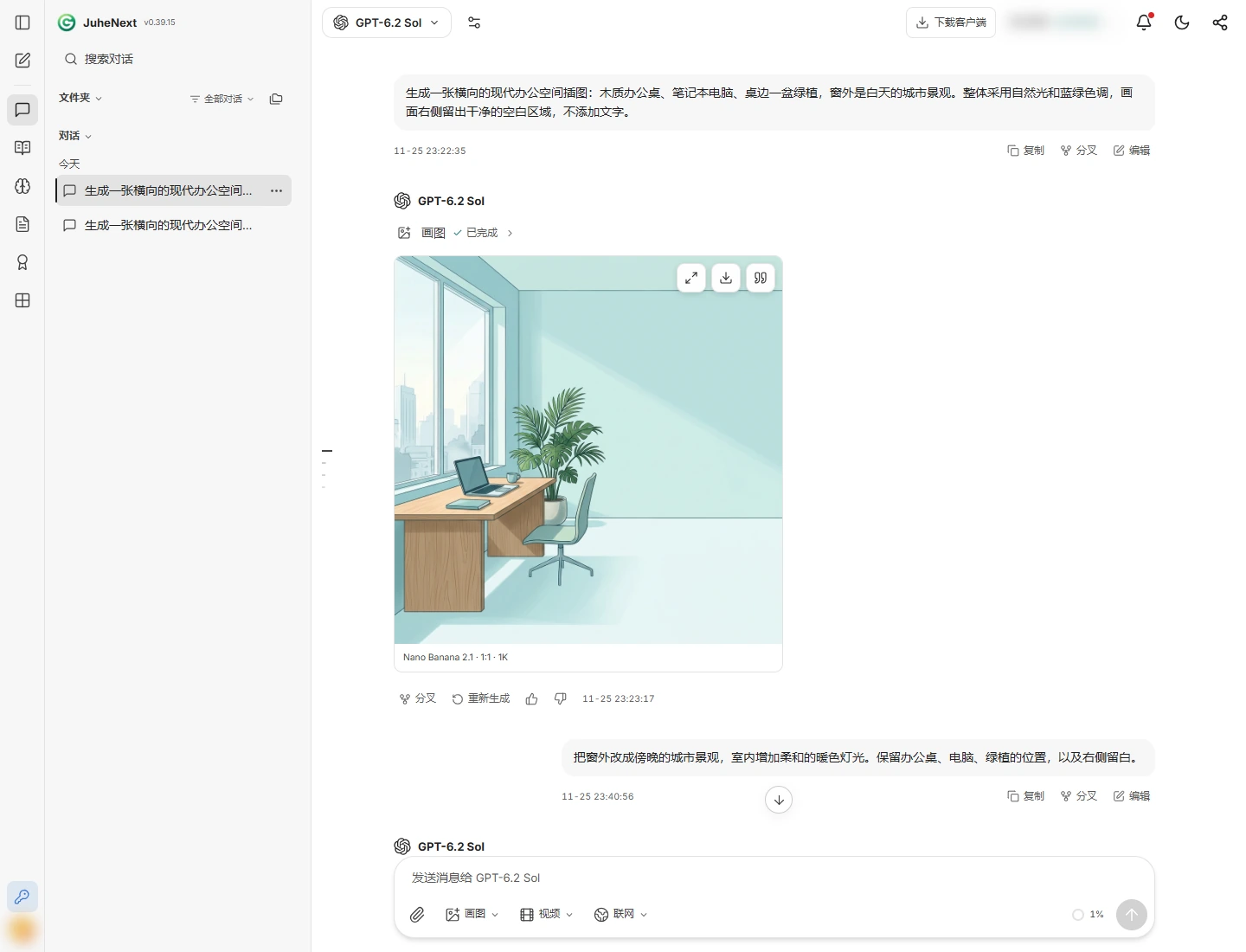
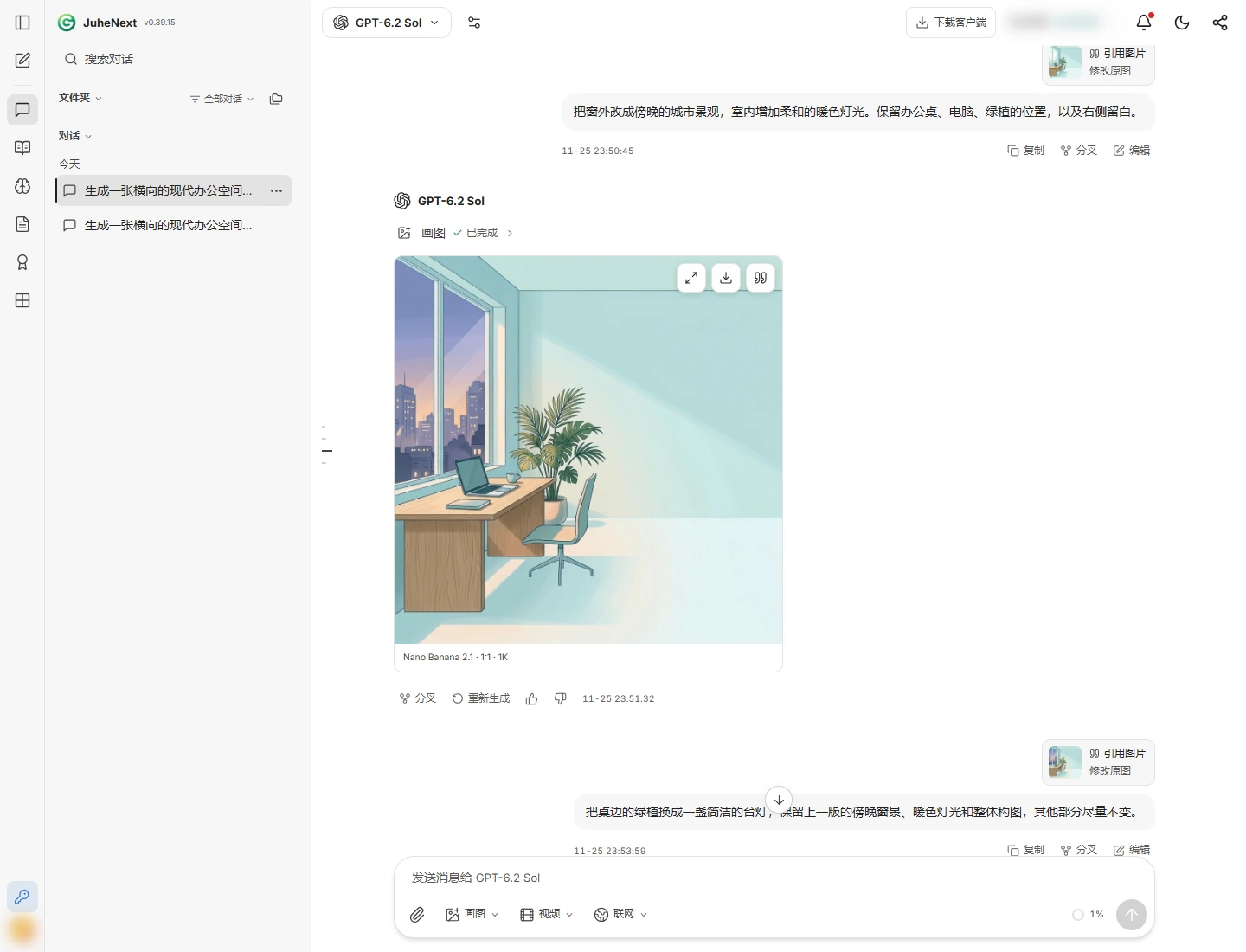
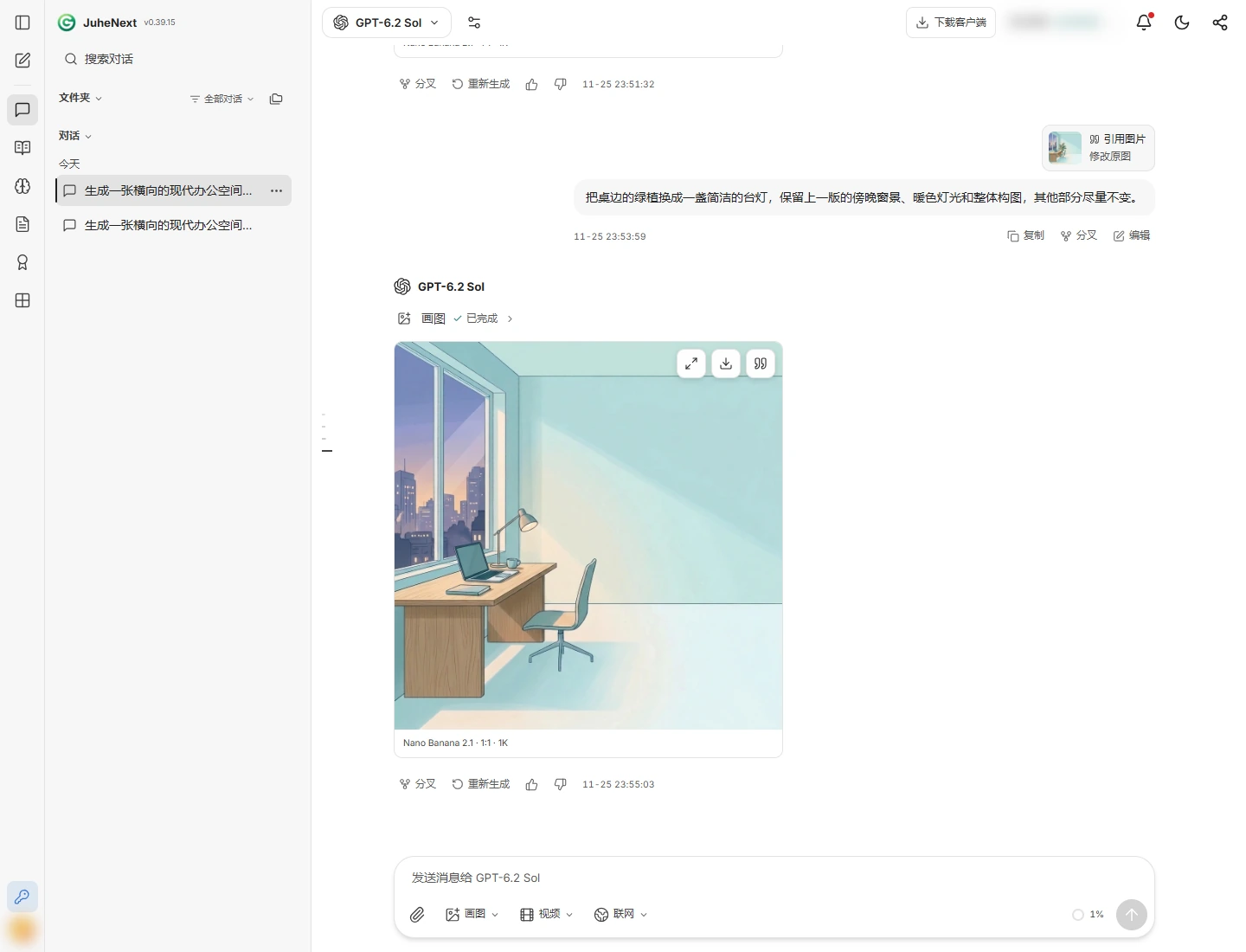
Conversational image generation places these requests inside a persistent session. A user might start with an office illustration, ask to change the scene from daylight to dusk, then replace a plant with a desk lamp. Later instructions can refer to earlier text, images, and results instead of describing the whole scene again.
Continuity comes from using previous results as context for the next edit. The image becomes something that can be refined through several decisions.
Differences From Independent Requests
Both approaches can use image models. Their basic unit of interaction differs: an independent request in one case, and a creative session with retained state in the other.
| Aspect | Independent Requests | Conversational Image Generation |
|---|---|---|
| Describing the brief | Restate the requirements for each request | Introduce and revise requirements in stages |
| Making changes | Describe the scene again and regenerate | State the changes and what should be preserved |
| Context | Mainly the current request | Conversation text, images, and previous results |
| Controlling the result | Try to specify everything in one prompt | Refine the result through feedback |
| Suitable tasks | Quick experiments and standalone images | Character development, composition changes, and related images |
| Main overhead | Repeating the brief | Maintaining session state and version relationships |
A standalone request is often sufficient for a simple illustration. Retained context becomes more useful when the brief has several constraints or the user needs repeated revisions.
How Context-Based Image Generation Works
The following describes general system design considerations. The state representation, reference-selection rules, and compression strategy depend on the product and model. The screenshots demonstrate interaction and visible results; they do not establish which internal algorithms a product uses.
A system needs to handle conversation text, the current reference image, previous outputs, and the requested change. It must organize these inputs into a task the image model can process.
1. Maintain the Creative State
The session can retain the subject, style, composition, palette, aspect ratio, space for text, accepted decisions, and outstanding changes.
For example, after a user establishes a blue-green office scene with empty space on the right, a request to “change the people to a development team” should build on those constraints.
This state needs revision too. “Use a different style” updates one part of the brief; “keep everything else” preserves the remaining constraints. A system needs to distinguish an exploratory suggestion from a decision that still applies.
2. Interpret the Scope of the Edit
A follow-up instruction often contains three pieces of information: the object to change, the change itself, and the elements to preserve.
“Change the background to a night scene and keep the person and clothing” calls for a different operation from “redesign the entire image.” Depending on model capabilities, the system may use an image reference, a masked edit, or a new generation.
Vague requests depend especially strongly on context. “Make it simpler” could mean removing background objects, reducing the palette, or shortening text. The instruction alone does not identify the intended change.
3. Use Previous Images as Conditions
An earlier image supplies information about the current subject, layout, style, and spatial relationships. A system may analyze those properties or pass the image directly to a model that accepts reference images.
Text expresses the desired change; the reference image shows the starting point. Together they provide the information needed for instructions such as “keep the person on the left and replace the object on the right with a monitor.”
Models differ in how they use reference images. Some emphasize visual style, some support localized edits, and others treat the reference as a broader visual cue. A shared interface needs to respect those differences.
4. Save New Versions and Their Relationships
An edit should create a new version while keeping its input and request traceable. Useful records include the source image, generation parameters, request, and resulting output.
Version history can branch: a user may explore two alternatives from the same draft and continue each separately. Saving only the latest image loses that relationship and makes returning to a useful intermediate result harder.
Benefits of Conversational Image Generation
It Fits an Iterative Creative Process
A visual brief is rarely complete at the first attempt. Users often establish a subject, inspect a draft, and only then identify changes to lighting, spacing, or objects. A conversation allows the brief to develop alongside the result.
It Reduces Repetition
Restating a complex brief creates opportunities to omit or contradict requirements. Retained context lets users focus on the current change while continuing to use accepted decisions.
It Helps Maintain Consistency Across Images
Related illustrations, character designs, and presentation assets often need a similar subject, style, or palette. Referencing accepted images and instructions can reduce the drift caused by starting each request from scratch.
Consistency is still approximate. Faces, hands, small text, logos, and precise layouts can change between generations. Context does not replace careful review, layout tools, or manual editing.
It Records the Reasons for Changes
A conversation keeps the instructions beside the intermediate results. That makes comparison, revision, and reuse easier than a folder of images without the decisions that produced them.
Implementation Challenges
Context Keeps Growing
Long sessions accumulate text, images, and versions. Sending everything can increase latency, cost, and context usage. Earlier suggestions may also interfere with the current brief.
A system needs to prioritize current images, recent instructions, and accepted constraints. It may consolidate repeated descriptions and retain superseded ideas as history. Excessive compression loses intent; insufficient compression leaves unnecessary material in the request.
Preserving an Element Is a Soft Constraint
“Only change the background” does not guarantee that every foreground pixel remains identical. An image model can alter facial details, clothing, or lighting while producing a new result conditioned on the input.
Masks, regional controls, reference strength, and model-specific settings may improve local control when supported. Small text and complex boundaries can still change. A reference-based edit should not be presented as equivalent to locking a layer in a conventional image editor.
Model Capabilities Differ
Context limits, reference-image counts, editing features, resolutions, aspect ratios, and formats vary. One model’s support for iterative editing does not establish the same capability in another.
The application needs to check whether the selected model accepts the requested inputs. Unsupported references should be explained rather than silently discarded.
Failures and Retries Need Traceable State
Image generation can fail because of timeouts, moderation, connectivity, or temporary service issues. Without clear request and version identifiers, retries can create duplicate charges or attach a result to the wrong input.
A reliable workflow records messages, tasks, source versions, and outputs separately. If a request’s status is unknown, it should check that status before resubmitting a paid operation.
Context Needs Privacy Controls
A creative session may contain personal photos, unpublished designs, or internal material. Users need clarity about what is sent to the next model request, what is stored, and what can be removed or exported.
Retained context should remain under user control. Reference images and relevant text should be inspectable, and material that is no longer needed should be removable.
Writing More Precise Follow-Up Instructions
A useful editing instruction names the object, the desired change, and the constraints to preserve:
Keep the current person, camera angle, and blue-green palette. Change the indoor office background to a city terrace at dusk, and retain the clear title area on the right.
This gives the model a more specific target than “make it more polished.” Broad feedback can help exploration, but it leaves more room for interpretation.
Change one or two major variables at a time. Establishing composition before refining style and details makes the cause of each change easier to assess. When changing direction entirely, say which earlier decisions no longer apply.
Evaluating an Iterative Edit
Visual appeal alone is not enough. Check four things:
- The requested object or property changed.
- The specified subject, composition, and aspect ratio were preserved sufficiently for the task.
- The result addressed the previous problem without adding distracting changes.
- The output is a clear reference for the next revision.
If repeated edits keep drifting, return to an earlier version and restate the preservation constraints. A different model or a more targeted editing input may be more suitable than another vague follow-up.
Try Continuous Image Editing in JuheNext Agent
The office example above was created with JuheNext Agent’s image-generation feature. Have a usable key and available credit ready, then follow this sequence:
- Open JuheNext Agent, sign in, and start a conversation. Open “画图” (Image generation) beneath the message field and enable it. Choose a model that supports reference-image editing. The screenshots use Nano Banana 2.1 at a 1:1 aspect ratio and 1K resolution.
- Generate a draft: “Create a modern office illustration with a wooden desk, laptop, and plant beside the desk. Show a daytime city through the window. Use natural light and a blue-green palette, leave clear space on the right, and add no text.”
- When the image is ready, select “引用此图继续修改” (Use this image for further edits) on it. Check that the reference appears in the composer and image generation is enabled. Send: “Change the city outside to dusk and add soft, warm indoor lighting. Keep the desk, laptop, and plant in place, and preserve the empty space on the right.”
- Reference the new result and continue: “Replace the plant beside the desk with a simple desk lamp. Keep the dusk window view, warm lighting, and overall composition from the previous version. Leave other elements as unchanged as possible.”
Inspect the requested changes and preserved elements after each result before choosing the reference for the next edit. Explicitly selecting an image reduces ambiguity about which version to use. Sending an editing instruction to ordinary chat without enabling image generation may produce only written advice. Check the selected model, resolution, and current pricing information before generating.
Closing Perspective
Context-based image generation extends a standalone model request into a process with conversation state, reference images, and version relationships. Its practical value is the ability to inspect a result, express a focused change, and retain useful decisions across revisions.
Model randomness, editing controls, context management, and version tracking still limit the result. Understanding those limits makes iterative editing easier to evaluate and refine.
Start with one draft, then follow the steps above to revise its lighting, background, or objects and compare the preserved elements after each round. Open JuheNext Agent to Try Continuous Image Editing.